A video doorbell that alerts for every passing car can be hard to live with. But turning everything down can create a different problem: missing someone approaching your front door. Start with the area you want to watch, then test the approach routes that matter. A motion zone is one setting, not a guarantee that every visitor will be detected.
Separate the view, the alert and the recording
These are different questions: what the camera can see, what causes a notification, and what video is saved. Do not assume that drawing a zone changes all three. The effect depends on the doorbell, app and recording settings.
- Camera view: the area visible through the lens.
- Motion or activity zone: a selected part of that view used to control detection or alerts, depending on the product.
- Notification setting: which detected events send a message to your phone.
- Recording setting: which events are saved, where they are stored and what your plan supports.
For example, Google’s Nest Activity Zones guidance says zones do not change the camera’s full view or what it streams and records. They help organize events and control alerts. Ring’s Smart Alerts guidance describes separate recording and notification choices for supported event types, with a compatible subscription. These are product examples, not a promise that every doorbell or SafeStreets package has the same controls.
Draw around the approach to your door
Look at the live view before changing settings. Identify the path from the gate, driveway or walkway to the doorstep. Include the part of your property where a visitor first approaches, rather than drawing only a tiny box around the doorbell button. Note a package drop-off area if you want it covered. Then look for street traffic, public sidewalk activity, moving branches, reflections or other distractions outside that route.
Ring recommends excluding high-traffic streets and sidewalks from motion zones when they cause unwanted alerts, while considering the paths people take toward the device. It also notes that reflections, sunlight, shadows and moving trees can affect detection. Use that as a reason to inspect the actual view, not as a claim that one zone shape will work for every entrance.
Change one setting, then walk the route
Make a note or screenshot of your current settings so you can return to them. Adjust the zone first, save it and ask a household member to walk toward the door from each normal approach. Check the result on the phone you use for alerts. Repeat after dark if your entrance looks different under porch lights or passing headlights. This is a practical household test, not proof that the camera will detect every future event.
- Did the person appear clearly in the live view?
- Did the expected notification arrive?
- If recording is enabled, was the approach saved in the event history?
- Did the visitor remain in view while standing at the door?
- Did unwanted street alerts become less frequent without losing the approach you meant to cover?
If you lower sensitivity or change event types as well, test again after each change. Otherwise, it becomes difficult to tell which setting caused an improvement or a missed event. If your device offers separate person, package or vehicle alerts, read the instructions for the exact model and subscription before relying on them.
An event without an alert is not always a missed recording
If someone reaches the door without an alert, first check the event history, then the device’s notification settings and your phone’s notification permissions. Google’s camera and doorbell alert guide explains that alert preferences are set separately for each camera or doorbell and that available notification types depend on the model and subscription. It also warns that detection is not perfect and events can be misidentified.
Keep the time and conditions of a failed test if you need support. Describe whether the problem was an absent recording, an absent phone notification or a poor camera view. Those are more useful details than simply saying the doorbell did not work. Do not turn off all alerts just to hide a problem you have not identified.
Motion zones are not a privacy mask
Excluding a neighbor’s window from an alert zone does not necessarily stop it appearing in video. Google explicitly says Activity Zones do not change the camera’s footage. Ring’s separate Privacy Zones feature blocks selected areas from live and recorded video on supported devices, but its guidance notes model exceptions and says motion may still be detected behind a blocked area. Check your product’s exact privacy and audio controls. Aim the camera toward your own entrance and avoid unnecessary views into neighboring homes.
For local planning in Cleveland, our Cleveland home-security page separates alarm-registration questions from the city’s camera-registry program. Neither should be confused with the doorbell’s own privacy settings.
Discuss the entrance, not just the camera
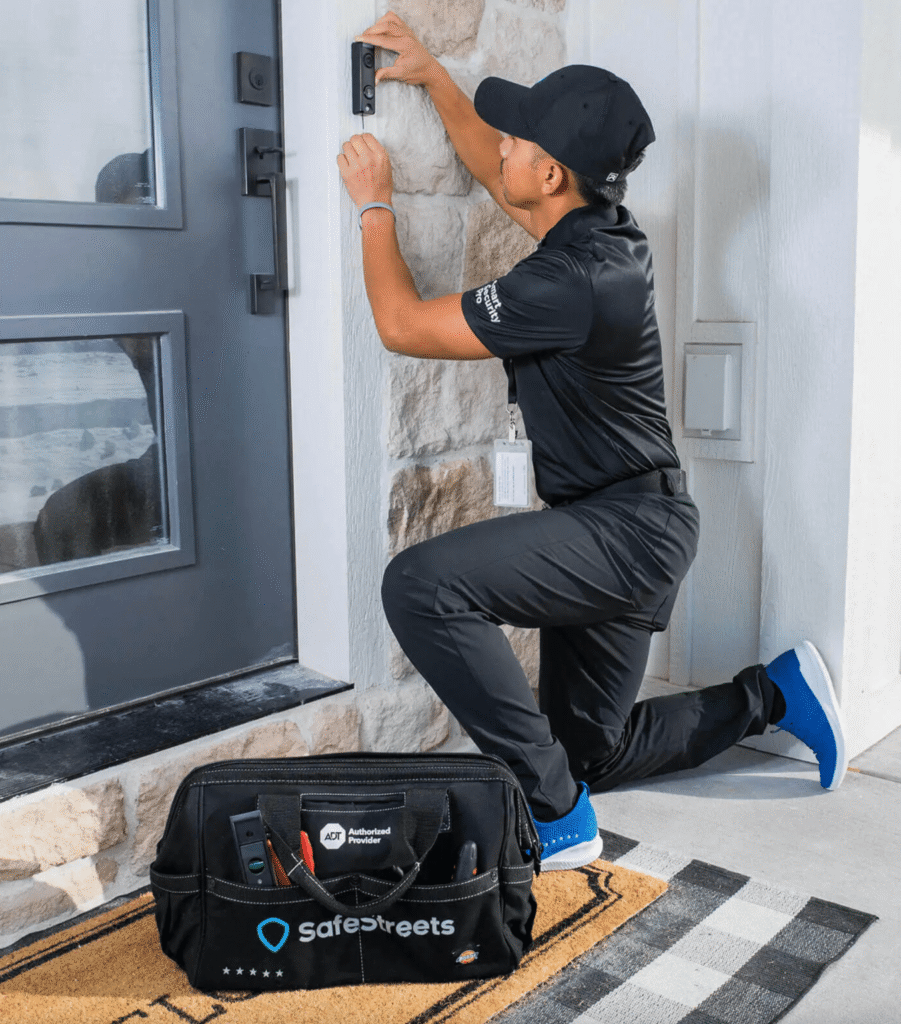
Before choosing equipment, ask which doorbell and app are included, which alert and recording controls are supported, whether a subscription is needed for the features you want, and how the view will cover your walkway and doorstep. See our doorbell camera information and wired versus battery doorbell guide for related planning questions.
Call (855) 585-8177 to discuss current options with SafeStreets. ShieldStreamz markets and refers customers to SafeStreets, an ADT Authorized Provider. Product availability, features, service terms and any offers are confirmed during the SafeStreets consultation. A doorbell notification is not a guarantee of emergency response.
Official Google Nest and Ring instructions reviewed November 12, 2026. Menu names, features and subscription requirements vary by model and may change.